Installing Overdrive+ on BYD
Enable Wireless ADB Debug
Steps to enable Wireless adb
If you've already enabled adb, skip this step
and go straight to Download & Install
Enable
Wireless adbon the Android device- BYD Firmware that supports enabling adb
2412,2503,2507,2602,2606Advice for new Firmware versions
Firmware
2602,2606may have issues when usingOverdrive+This is because newer Firmware restricts
adbusage and strengthens system security
- BYD Firmware that supports enabling adb
Special thanks to Tycherplus
Steps to enable Wireless adb Firmware 2602, 2606
Download & Install
Overdrive+ APK Download
- Filename:
overdrive-plus_v8.2610.9.apk - Version:
8.2610.9 - SHA256:
78496d552689a345d1b841fb098b825818c50771fb892c9671bbd87f63c59ed5
Install Overdrive+
TIP
There are several ways to install; here we'll install using the adb command over a WiFi connection
- Connect adb before installing with the command
adb connect 192.1.1.2- Note: the IP
192.1.1.2is the IP obtained from connecting the BYD car to WiFi; the IP for your installation will not be the same
- Note: the IP
- Verify the connection with the command
adb devices
List of devices attached
192.1.1.2:5555 device- Install with the command
adb install overdrive-plus_v8.2610.9.apk - When the installation is done, you'll see the
Overdrive+icon
Initial setup before use
Do the initial setup before using. When the installation is done, tap the
Overdrive+app and follow the steps belowTick the checkbox and press
ALLOWVery important!
Without
ALLOW, you won't be able to configure anything
- Press
ALLOWto grant access
Press
Open BYD Auto-Startto configureDisable Autostart
Very important!
Select
Disableas shown. If you don't, after a Reboot the app won't be able to start
Enable
Overlayto useUnified Monitor
Select as shown

Configure Traffic Monitor

Select as shown

- Final step: press the
DONEbutton
- Select your model and set the battery capacity
Go to the
Dashboardpage
Select your model and enter the battery capacity for your car

Lite mode
Recommendation: If Lite mode is enabled, click here to skip the Camera ID setup step.
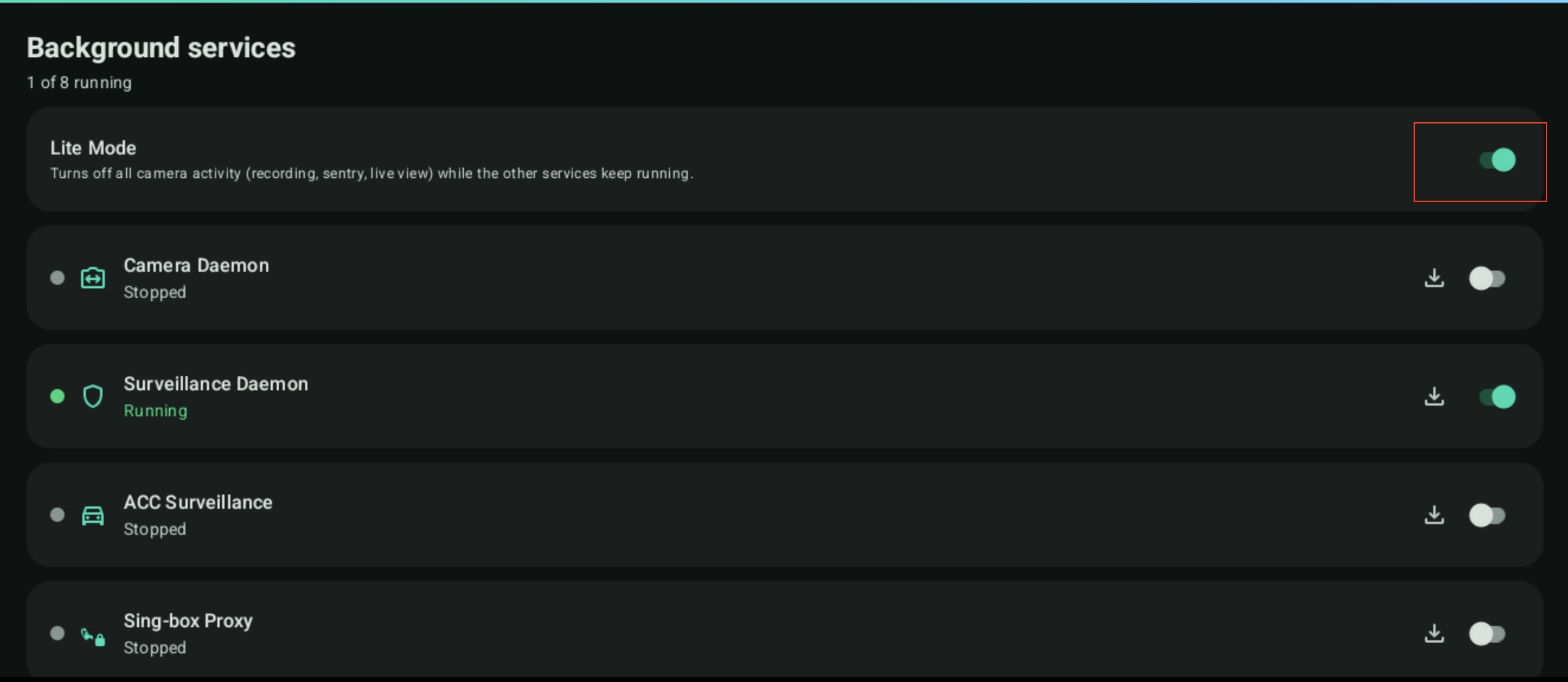
- Set the
Camera IDused for recording with the surround-view camerasGo to the
Diagnosticsmenu and tapCamera
Recommendations by BYD model
Dolphinwithout a dealer-installed Dashcam: selectCamera 0Atto 3,Sealion 6: selectCamera 1

Scroll down; if the correct
Camerais selected, you'll see the feed from all 4 surround-view cameras

Look at the circled area on the right; if it's a green dot ●, it means the camera is ready

Daemons status
- Go back and check the camera operation again. Go to the
Settings→Daemonsmenu and check the status of all Daemons.Camera Daemon ● Running
Survelliance Daemon ● Running
ACC Survelliance ● Running

Very important step
After the setup is complete, press and hold the Volume Up/Down button on the console for about 10 seconds to Reboot the screen.